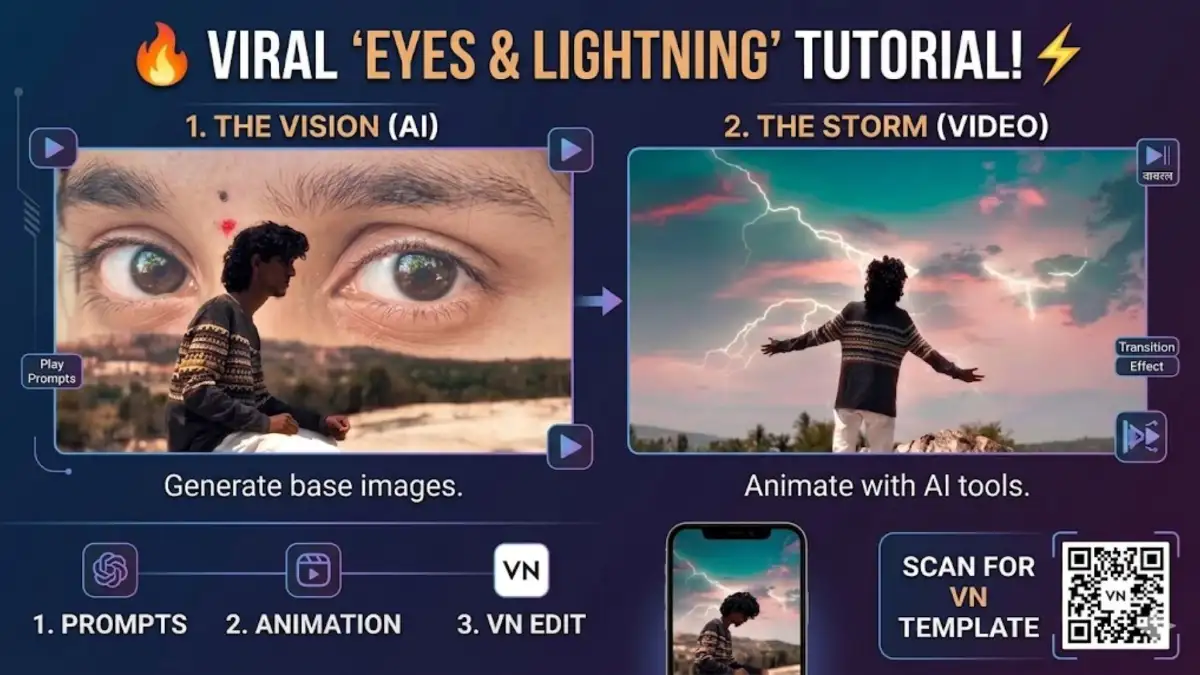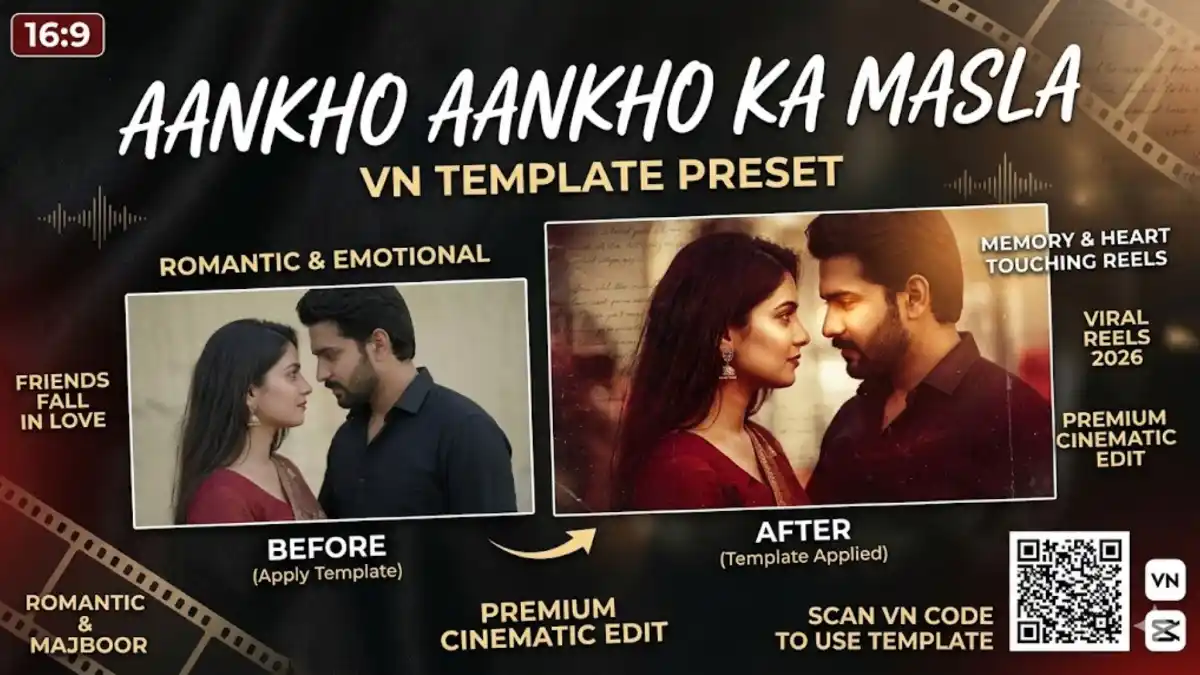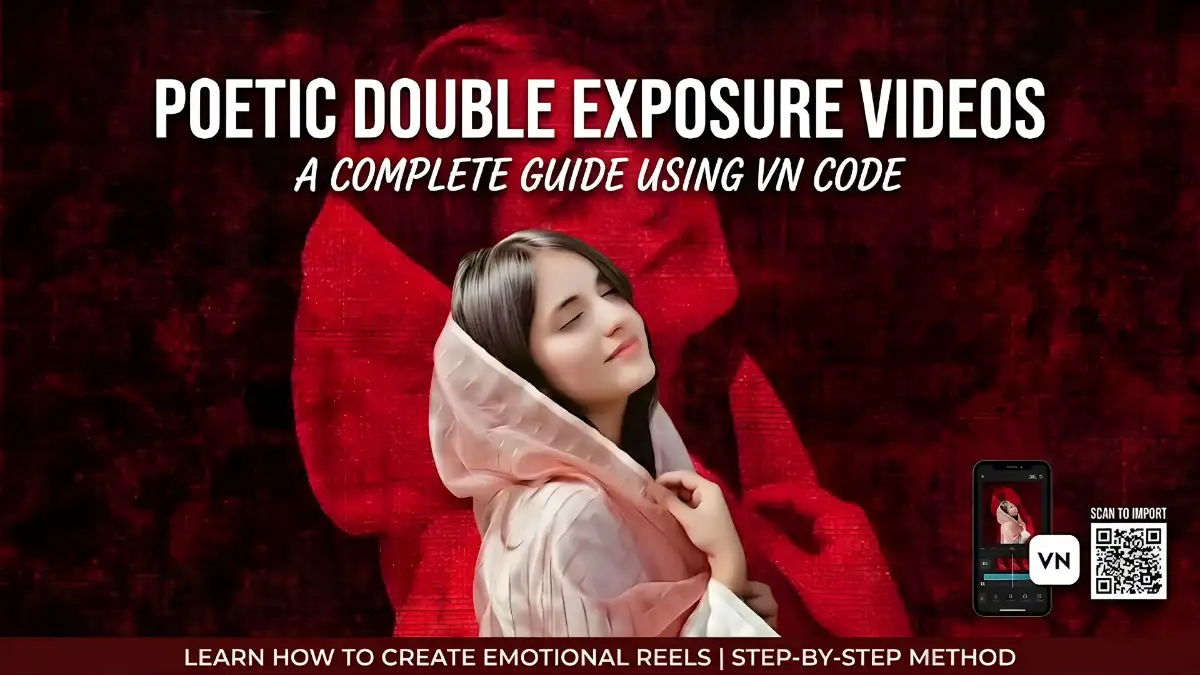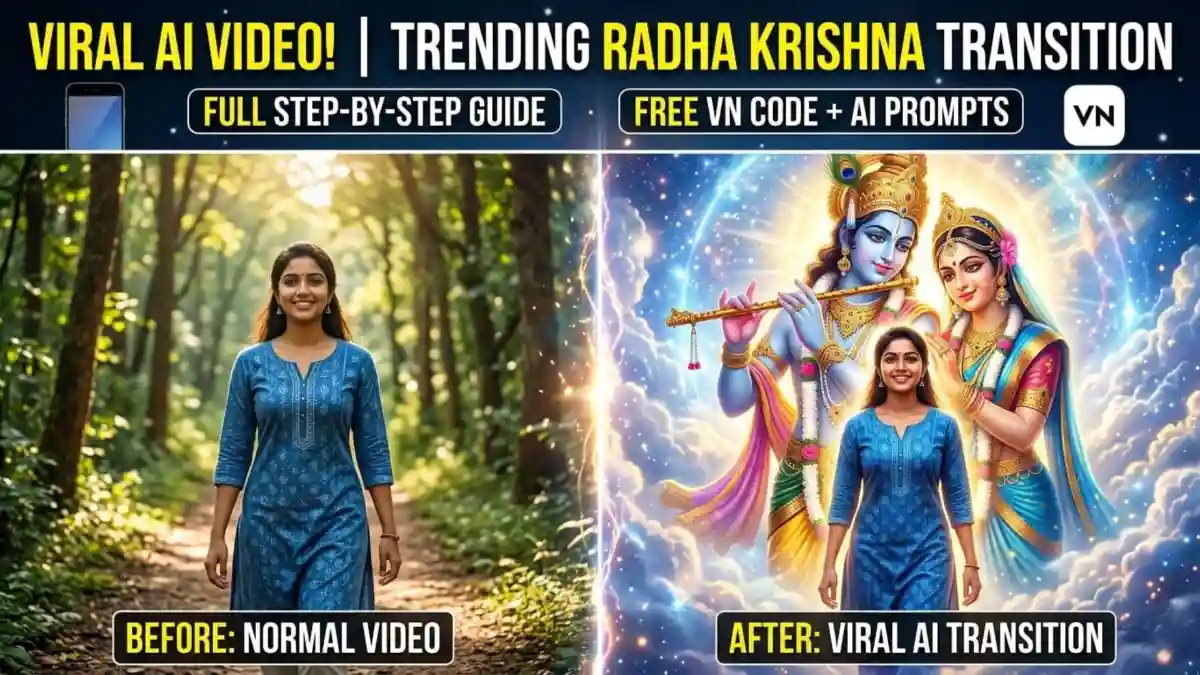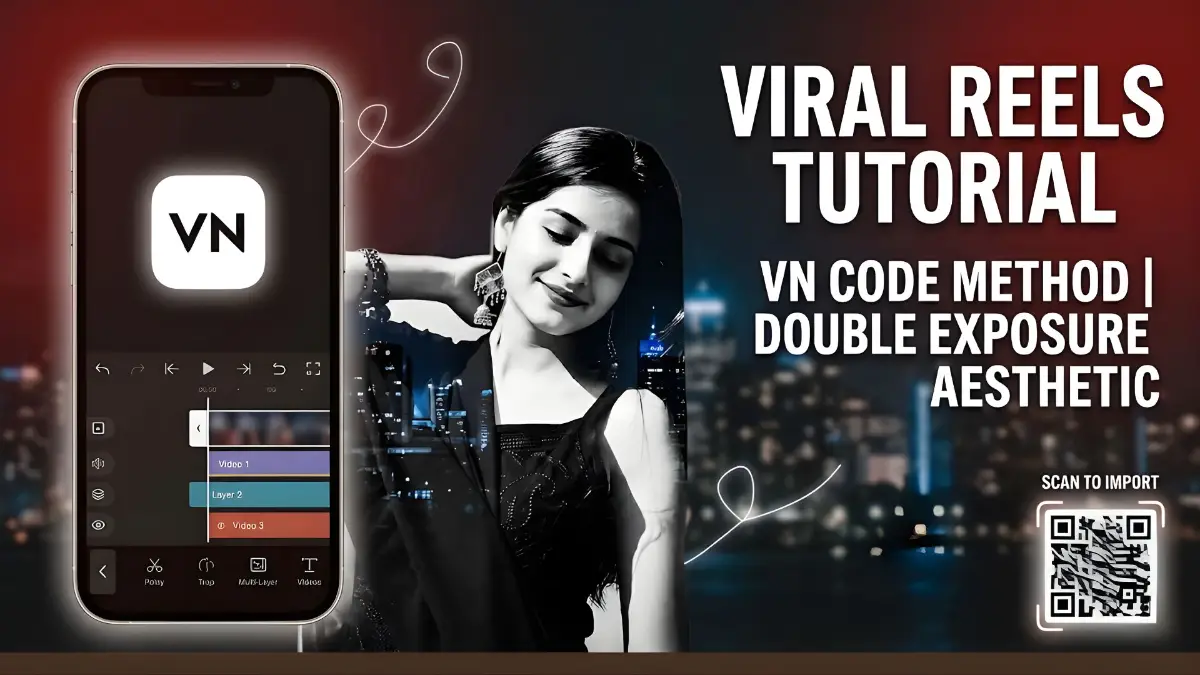
If you are scrolling through Instagram Reels or YouTube Shorts in 2026, you have undoubtedly seen the trend: a moody, atmospheric video starting with floating album covers that snap into a stunning, black-and-white double exposure portrait. It is the perfect format for sharing deep quotes, romantic lyrics, or atmospheric Shayari.
While the edit looks complex, featuring flash transitions and layered opacities, you do not need advanced desktop software to achieve it. The secret lies in using VN Video Editor and finding the right VN Code. Here is your complete, step-by-step guide to mastering this viral aesthetic.
Understanding the Trend: What Makes It Work?
This specific video style relies on three main visual hooks to capture the viewer’s attention:
- The Hook (Floating Albums): Small, blurred square images (like Spotify album art) circling and converging into a central point.
- The Flash Transition: A sharp camera flash sound effect paired with a sudden bright white screen that transitions into the main footage.
- The Double Exposure: A blend of two video clips or images—usually a portrait of a person mixed with a background element like a street sign, rain, or a moving car—often toggling between color and black-and-white.
The Secret Weapon: What is a VN Code?
A VN Code is essentially a QR code that contains a complete project template for the VN Video Editor app. When you scan it, it imports all the complex editing work—the transition timings, the double-exposure blending modes (like ‘Screen’ or ‘Overlay’), the keyframe animations, and the text layouts. All you have to do is plug in your own photos and videos.
Step-by-Step Guide: How to Use VN Codes for Double Exposure Videos
Follow these steps to replicate the aesthetic video style perfectly.

Step 1: Download VN Video Editor
If you haven’t already, download the VN – Video Editor & Maker app. It is entirely free and available on both Android and iOS devices.
Step 2: Find the Perfect VN Code
You need the specific template for this trend.
- Search platforms like YouTube, Pinterest, or Instagram for keywords like: “Aesthetic double exposure VN code”, “Floating album VN template”, or “Flash transition quote VN code”.
- Once you find a tutorial video or post showcasing the exact effect, screenshot the VN Code (the QR code) provided by the creator and save it to your phone’s gallery.
Step 3: Scan and Import the Template
- Open the VN app.
- Tap the Three Dots icon in the top right corner (or look for the Scan icon on the main project screen).
- Select Scan.
- Instead of using the camera, tap the Gallery/Photos icon in the top right corner of the scanning screen.
- Select the screenshot of the VN Code you saved in Step 2.
- The app will process the code and prompt you to Download the template. Once downloaded, tap Use Template.
Step 4: Replace the Placeholder Media
The template will open a timeline filled with placeholder images. This is where you customize the video.
- The Intro (Floating Squares): The first few clips are usually the small floating images. Tap each placeholder and select different photos from your gallery (e.g., your favorite album covers, couple photos, or aesthetic Pinterest finds).
- The Main Video (Double Exposure): You will see two main tracks layered on top of each other after the flash transition.
- Track 1 (Background): Select your background aesthetic (e.g., the street sign, a rainy window, or a dark textured wall).
- Track 2 (Foreground/Subject): Select the portrait of the person.
- Note: VN automatically applies the blending mode (like Screen or Lighten) to merge them. Ensure your portrait has good contrast for the best effect.
Step 5: Customize Text and Audio
- Text: Locate the text layers (marked with a ‘T’ on the timeline). Tap them to edit. Change the default text to your chosen quote, lyric, or “Send This Line To Your Partner>>>”. Adjust the font to something elegant and minimalist.
- Audio: The template usually comes with the original trending audio. If you want to change it, tap the music track, delete it, and use the Music icon to add your own Lo-Fi track or trending Shayari audio.
Step 6: Export for High Quality
Once your media is placed and the text is perfect, it is time to export.
- Tap the Export button (top right).
- For platforms like Instagram Reels, adjust the settings:
- Resolution: 1080p
- FPS (Frames Per Second): 30 or 60
- Bitrate: Default or High
- Tap export, wait for it to render, and your aesthetic masterpiece is ready to go viral!
Pro Tips for Content Creators
- Color Grading: The viral example uses a strict Black & White filter with one element (the blue sign) isolated in color. You can replicate this by using the “Filter” tab in VN and applying a B&W filter to your main subject clip, leaving the background clip in muted colors.
- Asset Quality: The double exposure effect relies heavily on contrast. Use high-quality, sharp images for your subject, preferably with a clean, uncluttered background in the original photo.
- Audio Syncing: Even when using templates, ensure the dramatic “flash” transition aligns perfectly with the beat drop or the start of the lyrics in your chosen audio track.