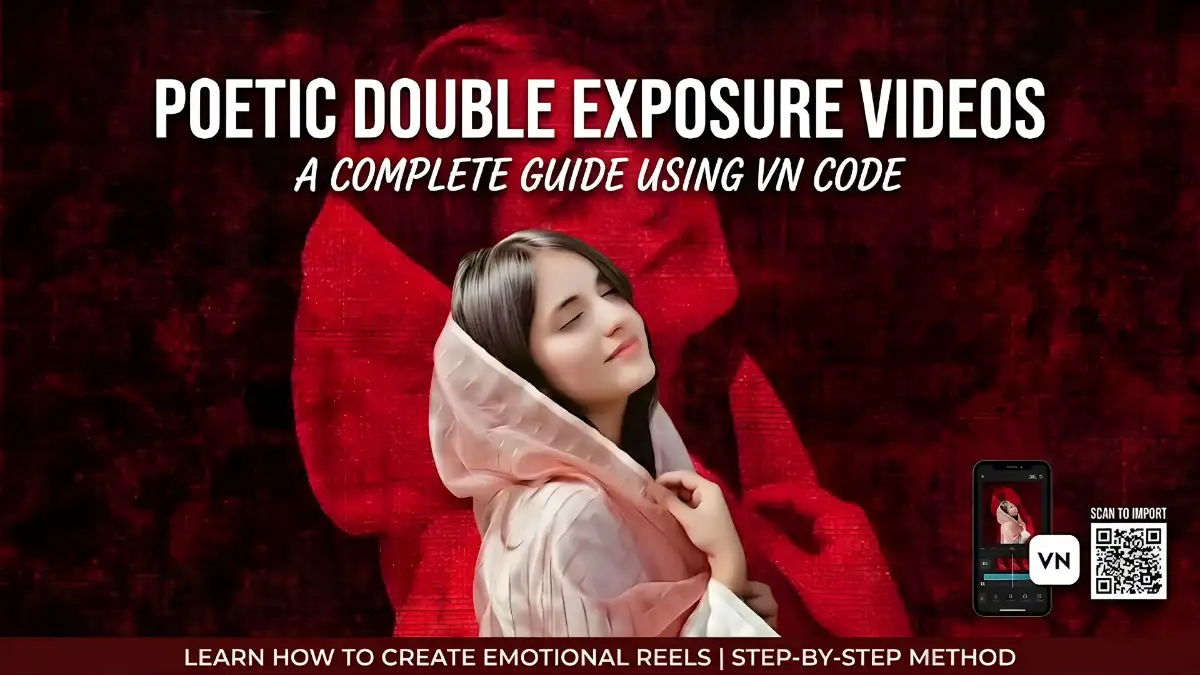
Are you mesmerized by those deep, emotional videos that blend a portrait with a rich, textured, double-exposure effect? That unique, poetic style, often featuring Shayari or a touching quote, is incredibly popular on social media, especially Instagram Reels and YouTube Shorts. The secret behind many of these viral hits is a powerful, yet free, tool called VN Video Editor, often utilized with a shared ‘VN Code’ for specific effects.
This guide will walk you through the entire process, from finding the right VN code to exporting your poetic masterpiece.
Wait, What is a VN Code?
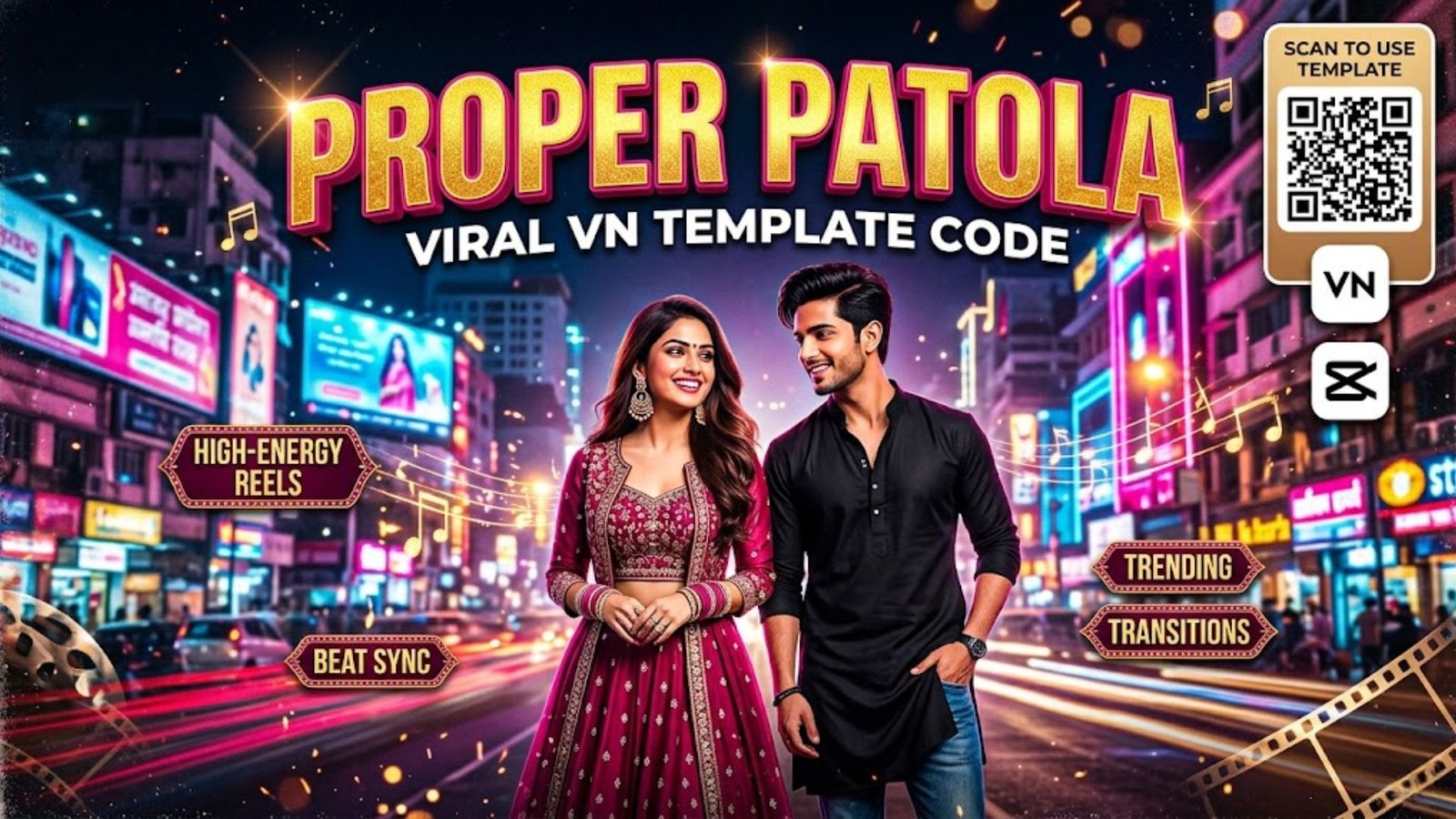
For those new to VN Editor, a VN Code is a small, shareable file (often in the form of a QR code image) that contains a pre-set project template. Think of it as a recipe for a specific video style. It saves all the complex settings like filters, text animations, music timing, and transitions, allowing other users to instantly apply the same look to their own footage without starting from scratch.
How to Use a VN Code (Step-by-Step Method)
This is the most crucial part of creating this specific look. The template will automatically build the structure for you.
Step 1: Get VN Video Editor
Before you begin, ensure you have the VN Video Editor app installed on your smartphone (it’s available for free on both the Apple App Store and Google Play Store).
Step 2: Find the VN Code
Find a VN Code for the desired effect. In this case, you’ll want to search for themes like ‘Poetic Double Exposure’, ‘Deep Red Texture Overlay’, or ‘Shayari Video Template’ on platforms like YouTube, Pinterest, or VN’s own community hub. Save the VN code image to your phone’s gallery.
Step 3: Scan the VN Code
Open the VN app.

Inside the app, look for the Plus (+) icon (often labeled ‘New Project’ or located on the bottom navigation bar).
Look for a Scan icon (a small camera or QR code symbol). Tap it.
This will open your camera. You can either position your phone to scan the VN code from another screen or, more commonly, tap the gallery icon within the scanner to select the saved VN code image.
Step 4: Load the Template
Once the code is recognized, VN will automatically download the template assets and apply the effect chain. The template will then load into the editor, complete with placeholders for your media.
Creating Your Poetic Masterpiece (Using VN Code)
Now that your project structure is loaded, it’s time to add your personal touch.
Step 1: Gather Your Materials
You will need:
Your Main Footage: A high-quality video clip or portrait photo of your subject. The more neutral the original background, the more dramatic the double exposure effect will be.
A Textured Background (Optional but recommended): The video style relies on a texture like the deep red fabric you provided. Often, the VN template will already have a suitable texture placeholder, but you can always substitute your own (like dark velvet, ancient paper, or a smoke effect).
Your Text or Quote: The exact line or Shayari you want to overlay.
Step 2: Replace Placeholder Media
The VN template on the timeline will have several media placeholders. You just need to tap on each placeholder and select your own media from your gallery. VN will automatically swap them, keeping all the transitions, filters, and timings intact. For this look, you will likely replace:
The main subject placeholder with your own photo/video.
The textured background placeholder (if it’s not already included).
Step 3: Understand and Edit transitions
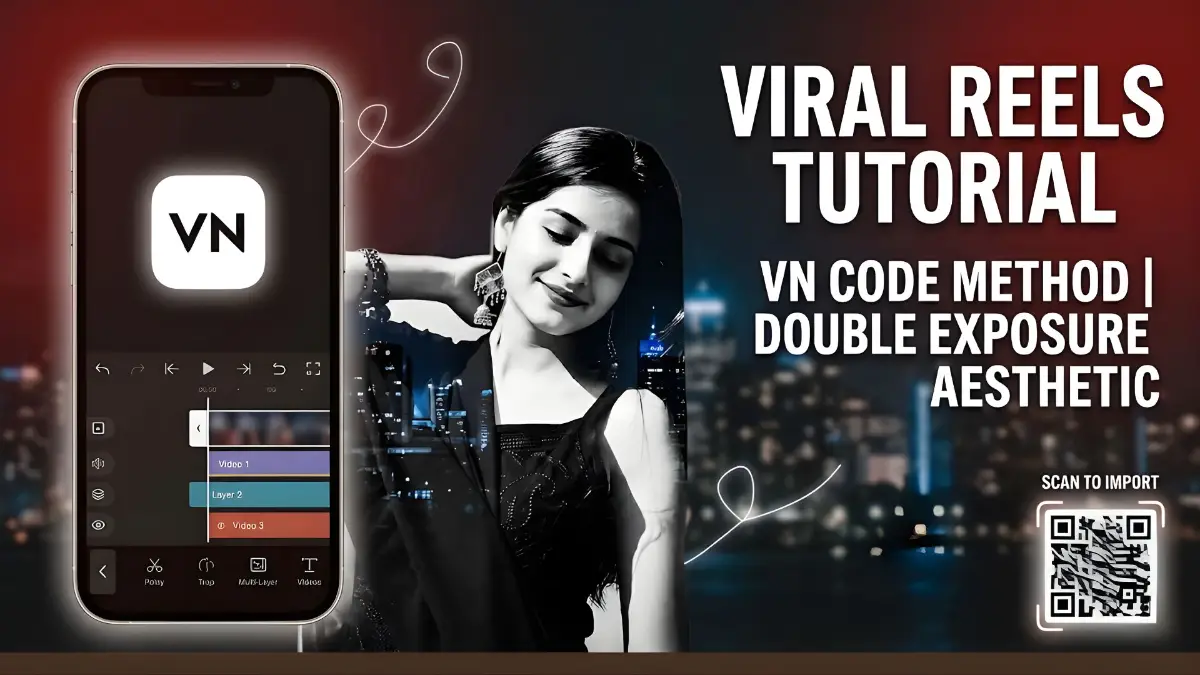
The core of this video’s style is the Double Exposure Effect. In the timeline, you will see several video layers (or tracks):
Layer 1: Your main portrait layer.
Layer 2 (Overlaid): The textured background layer (e.g., the red fabric).
Click on the top textured layer. Explore the Blend or Blending Mode menu in the bottom toolbar. The template will likely use a blending mode like ‘Screen’, ‘Overlay’, or ‘Soft Light’, which is what creates the transparent, merged effect. You can change these to explore different visual styles.
Transitions between clips are also critical. Slow crossfades and gentle zooms enhance the poetic mood. You can adjust these by clicking the small vertical line between two clips on the timeline and exploring the ‘Transitions’ menu.
Step 4: Adding Text and Timing
Adding poetic text or Shayari is essential.
Tap on the Text icon (usually a ‘T’).
Choose your font. Simple, clean serif or script fonts work best for this vibe.
Type your message. For example: WHAT IS YOUR Problem? or JURM SIRF | اتنا.
You can apply a text animation (like a slow fade-in) for a softer touch.
Most Crucial Part: Timing. Adjust the text layer on the timeline so it appears and disappears at the perfect moments, matching the emotional beats of your video and the accompanying music.
Step 5: Add Music and Final Polish
To complete the experience, you need the right audio.
Tap on the Music icon.
Choose a melancholic, instrumental, or poetry-based track.
Sync the audio to your video cuts for maximum impact.
Optionally, use VN’s built-in Filters or Adjust tools to slightly fine-tune the color grading of your main subject to blend better with the textured overlay.
Step 6: Export Your Video
After you’ve perfected your creation, it’s time to show it to the world.
Click the Export button (usually a top-right arrow or export symbol).
Choose your resolution (1080p is the standard for social media) and frame rate (30fps or 60fps).
Wait for the rendering process to complete.
Save the final video to your camera roll and share it on Instagram, TikTok, or YouTube!
Pro Tips for a Better Poetic Reel
Choose the Right Subject: A pensive, calm, or slightly sad portrait works best for this specific poetic vibe.
Keep it Simple: Don’t overcrowd the screen with text. One or two impactful lines are better than a full poem.
Adjust Opacity: If the textured background layer is too strong, use VN’s ‘Opacity’ tool to make it slightly more transparent.
Experiment with Blending Modes: Different modes create totally different final results. Try them all!
Conclusion
Creating deep, poetic double exposure videos that captivate your audience is an achievable goal, even with no editing background. VN Video Editor, especially when used with shared VN Codes, makes the process accessible and incredibly creative. So, go ahead, grab a VN code, start editing, and let your poetic side shine! For more tutorials and creative ideas, follow our blog. Happy editing!