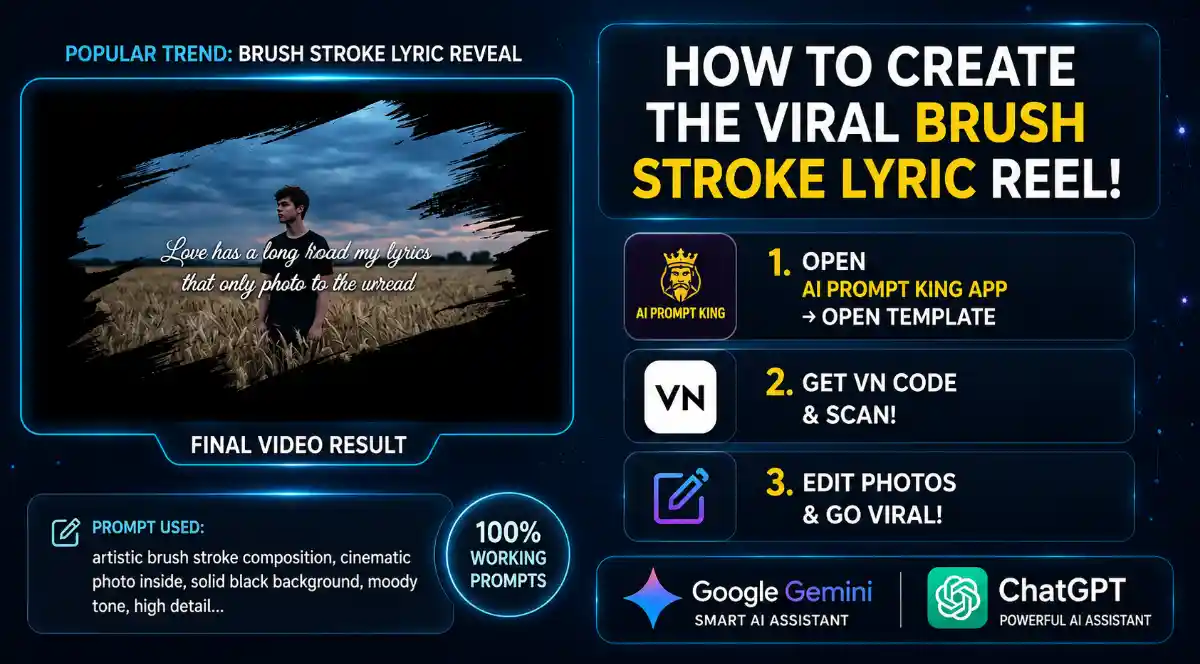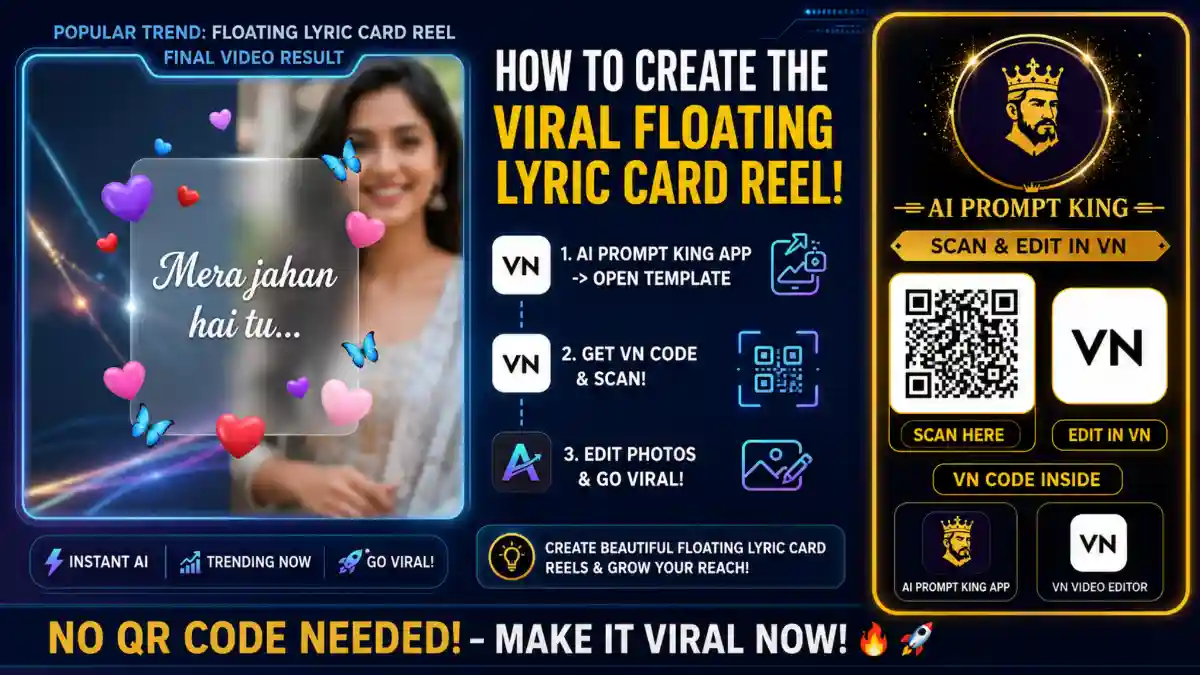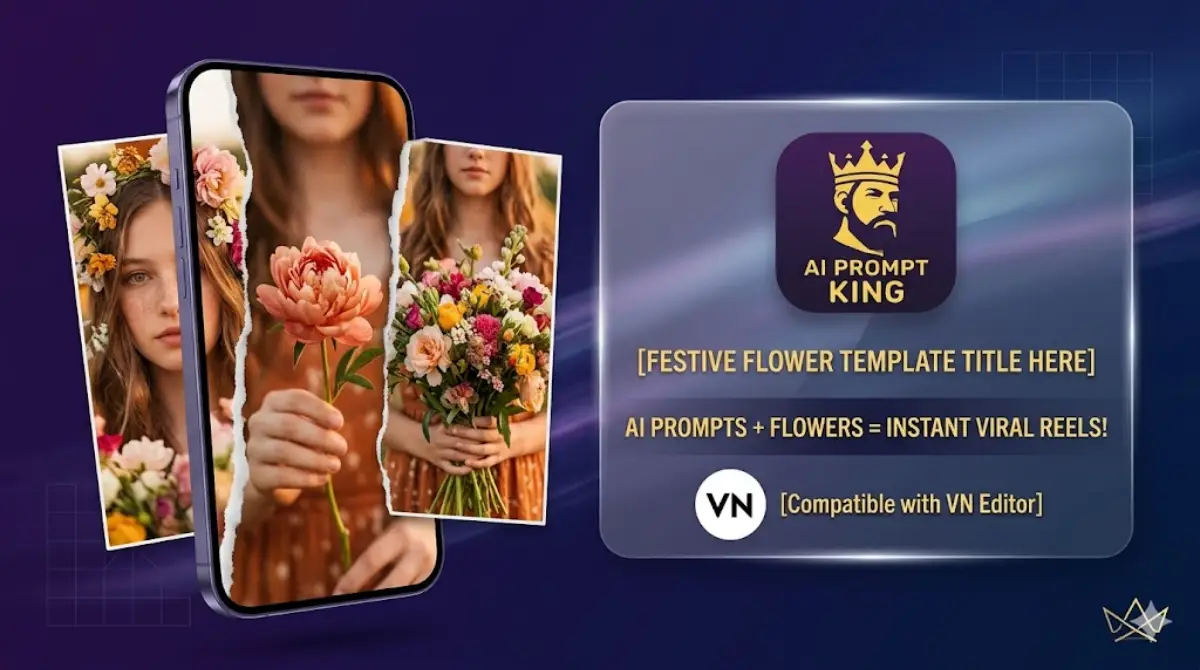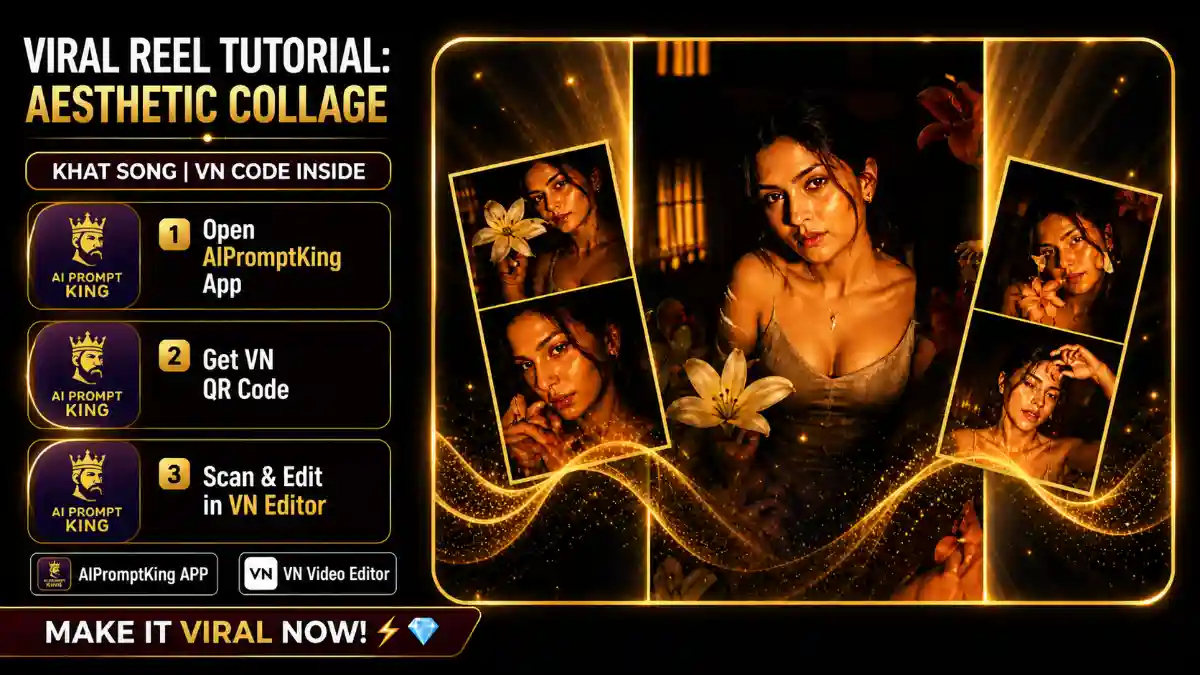
Instagram par aaj kal Navjot Ahuja ke gaane Khat par ek bahut hi aesthetic collage trend chal raha hai. Is trend mein aapki photos ke upar ek music player overlay aur flowers ka use kiya jata hai, jo ise ek bahut hi premium look deta hai.
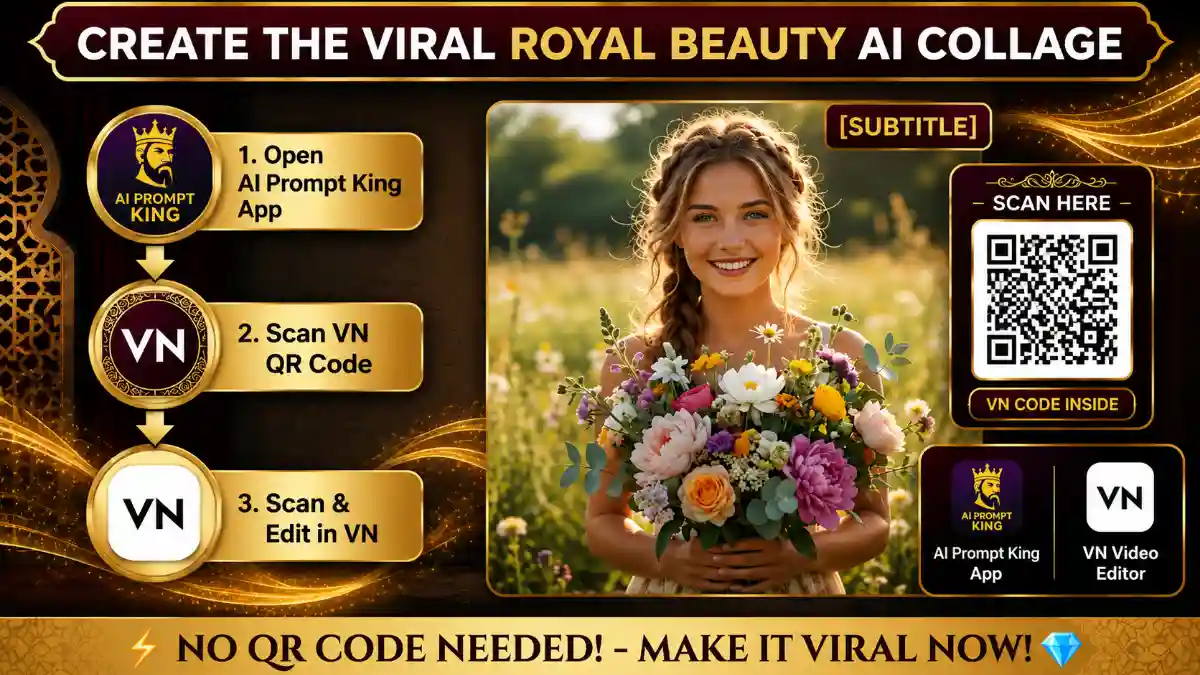
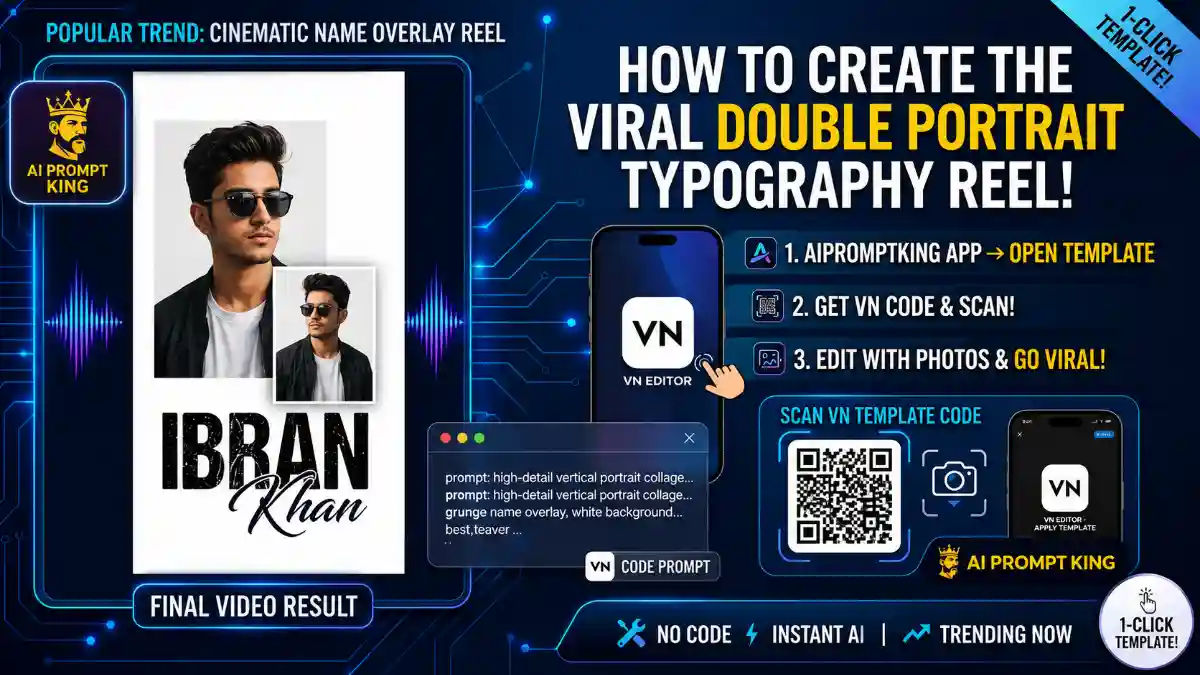
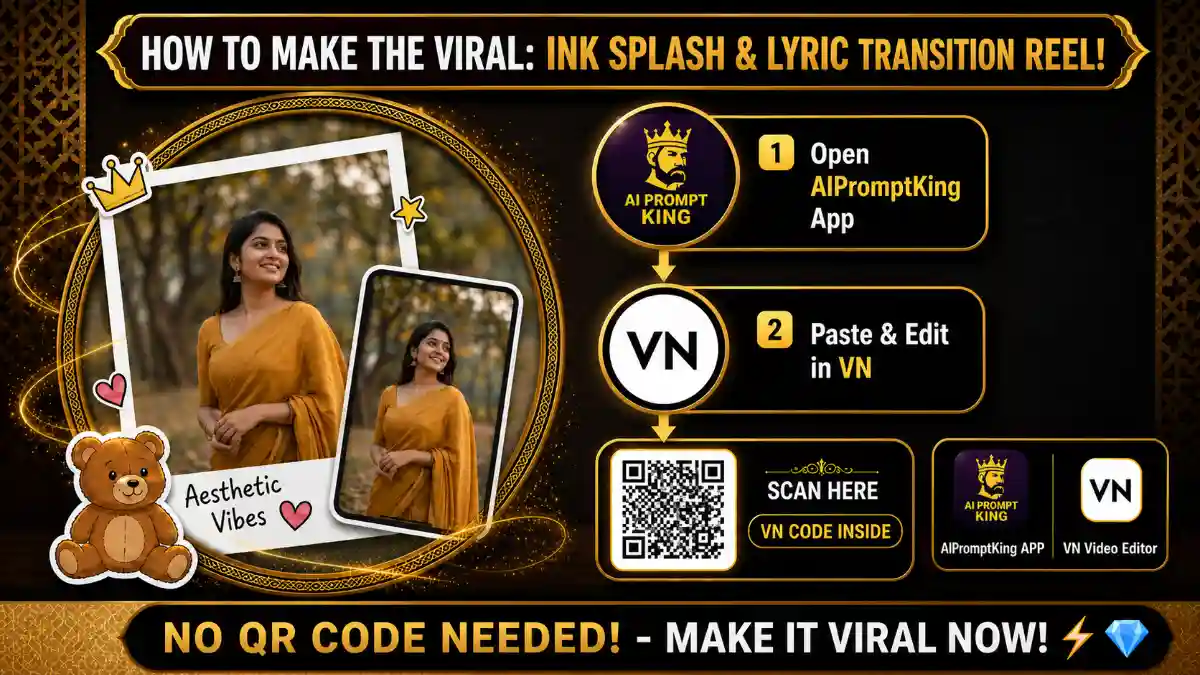
Aap is viral reel ko AIPromptKing app aur ek simple VN QR code ki madad se asani se bana sakte hain. Bas niche diye gaye steps ko follow karein:
Step 1: Open the AIPromptKing App
Sahi transition effects aur glassmorphism style ke liye aapko hamari app par jana hoga.
- AIPromptKing App Khalein: Sabse pehle apne phone mein AIPromptKing app open karein.
- Khat Song Trend Search Karein: App ke andar “Khat Aesthetic Collage” template search karke open karein.
- Website par Jayein: Template ke niche diye gaye button par tap karein. Yeh aapko hamari website ke is dedicated tutorial page par le aayega.
Step 2: Get the VN QR Code
Website par aane ke baad aapko is special edit ka QR code milega.

- QR Code dhundhein: Is article ke niche scroll karein aur official VN QR Code ko dekhein.
- Save Karein: Is QR code ka ek clear screenshot le lein aur gallery mein save kar lein.
Step 3: Scan and Edit in VN Video Editor
Ab bas aapko apni photos ko template ke saath sync karna hai.
- VN App Open Karein: Apne phone mein VN Video Editor app kholein.
- Scan Click Karein: Home screen par upar right side mein Scan icon par click karein aur apna QR code screenshot select karein.
- Photos Replace Karein: “Use Template” par click karein aur apni 4-5 best photos select karein. Template apne aap collage, music player overlay aur flowers set kar dega.
- Export & Post: Video ko high resolution mein export karein aur Instagram par trend ko join karein!
How to Use This Guide
This tutorial is part of VelocAI’s growing library of practical AI guides. Every step above has been tested on real devices before publishing, so the workflow you see is the same one that produced the demo result. If a step looks unfamiliar, scroll back to the top and match the screenshots one by one before moving forward — small details (aspect ratio, export quality, audio sync) make a big difference in the final output.
Pro Tips for Better Viral Reels
- Hook in the first second: The opening frame decides if a viewer keeps watching or scrolls away. Lead with motion, a face, or a contrasting colour.
- Match audio to motion: Use VN’s beat markers to align cuts with the music drop. Reels that feel “in time” with the audio get more replays.
- Keep duration tight: 7–15 seconds usually outperforms longer edits for trending audios. Remove any second that does not add value.
- Export at 1080p, 30fps: Higher bitrate exports look noticeably cleaner on Instagram’s compressed feed.
- Reuse winning templates: If a reel performs well, post a follow-up using the same structure within 48–72 hours while the algorithm is favourable.
Common Mistakes to Avoid
Most reels fail because of small, fixable issues, not because the template is bad. Watch out for these:
- Wrong aspect ratio: Always export 9:16 vertical. A 16:9 export with black bars looks unprofessional and gets less reach.
- Skipping the cover frame: A clean cover image dramatically improves click-through from the Reels grid — do not leave it as the first auto-frame.
- Copyrighted music in the wrong region: Some songs are blocked in specific countries; preview your reel from a friend’s account before declaring it final.
- Over-editing: Too many transitions feel chaotic. Three to five hard cuts plus the trending audio is usually enough.
What You Need to Recreate This
- A smartphone with the latest VN Video Editor installed
- The exact template / VN code shared in the post above
- One reference photo or video clip in good lighting
- The trending audio saved to your VN drafts
- Roughly 5–10 minutes of focused editing time
FAQ
Is this method free to use?
The core workflow uses tools that have a generous free tier. Where a paid plan unlocks faster rendering or higher quality, the post mentions it explicitly. You can complete the basic tutorial without paying anything.
How long does it take to recreate this?
Most readers finish in 10–20 minutes the first time and under 5 minutes once familiar with the tool. The slowest part is usually the rendering or export step.
Will this work on my phone?
Yes — this guide is mobile-first wherever possible. The tutorial uses tools available on both Android and iOS. If a desktop step is required it will be clearly marked.
What if my output looks different from the demo?
Small differences in source media (lighting, framing, resolution) change the final result. Re-check the inputs first, then revisit the settings step by step. Most variations come from a single mismatched parameter.
Can I use this commercially?
It depends on the licence of the underlying tool, music, or assets. Check the original tool’s terms of service before using output for paid client work or branded campaigns.
Found an error in this guide or want to suggest an update? Drop us a note via the contact page — we read every message.